
Find your way around the Control Room
Learn what each PlayWeld screen owns and where to inspect configuration, work, and results.
On this page
The Control Room presents the project's tools and the records maintained by its local service. Start from Project Home and confirm the selected game before using a project-specific screen.
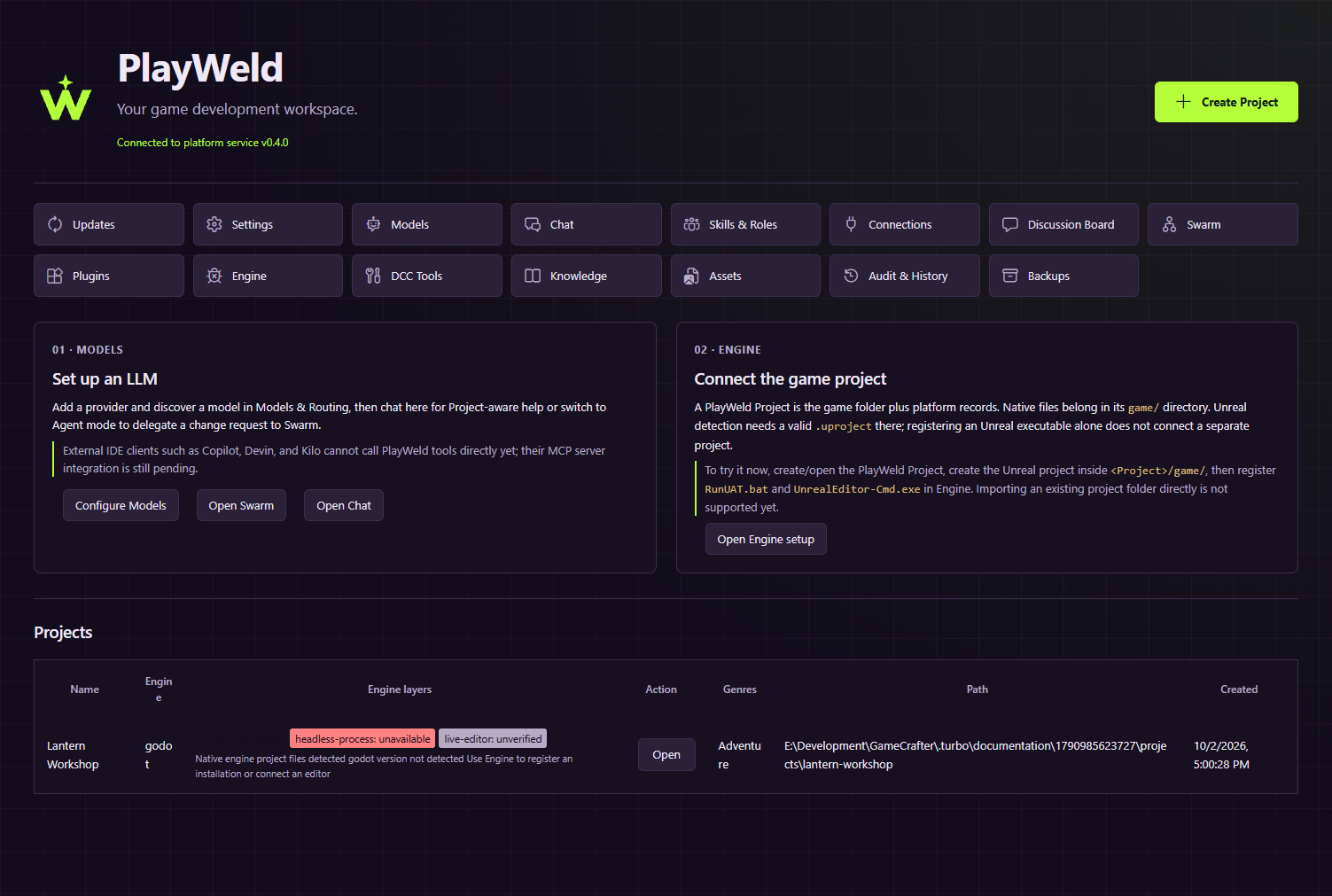
Actual development browser UI with an example project and isolated service.
Workspace and AI
Project Home creates and opens registered games. Models manages provider accounts, enabled models, capabilities, and routing. Chat stores conversations and can hand implementation work to Swarm, where requests, task trees, questions, approvals, locks, and integrations become inspectable records.
Read project organization, model setup, and agent review before a larger workflow.
Design and knowledge
Discussion Board holds proposals, questions, and evidence around a game change. Adopted decisions can synchronize into project design records. Knowledge indexes source documents and exposes search citations. Skills & Roles supplies task instructions and responsibilities without bypassing execution policy.
See discussion decisions, knowledge retrieval, and skills and roles.
Native tools and assets
Connections configures external MCP servers. Engine distinguishes native files, headless executables, and live editor bridges. DCC Tools manages authoring-tool operations. Assets separates provider jobs, review, and import. Plugins displays package capabilities, activation, and runtime state.
Read engine connections, MCP setup, and asset review.
Configuration and recovery
Settings shows effective values and their origin. Backups records plans, archives, verification, and restoration. Updates separates offered releases from download and verification. Audit & History links symptoms to project events and tool calls.
A screen rendering successfully is not proof that an external provider, engine operation, or restore succeeded. Inspect the corresponding result and use the relevant guide for acceptance checks.