
Connect MCP tools to a PlayWeld project
Choose a transport and scope, inspect discovered tools, and verify identity before using an editor connection.
On this page
MCP connections make external tools available through the platform's connection manager and broker. A successful protocol handshake does not establish that a game editor has the right project open.
Choose a connection mode
| Mode | Configuration |
|---|---|
| Command | Executable, arguments, working directory, and environment for a local stdio server |
| Endpoint | URL, transport, headers, and credentials for an HTTP or SSE endpoint |
| Docker | Image, command, transport, ports, mounts, network, and pull policy |
Pick platform or project scope deliberately. Use a simple name such as lantern-tools; the form accepts lowercase letters, numbers, and hyphens under its naming rules. Supply executable and arguments separately instead of pasting a shell command with ambiguous quoting.
Inspect the connection
- Confirm the selected project or platform scope.
- Configure the server with host-native paths and supported credentials controls.
- Connect and read its state, negotiated protocol, capabilities, and discovered tools.
- Run a suitable read-only check and inspect its broker result.
- Keep the connection and call identifiers if anything fails.
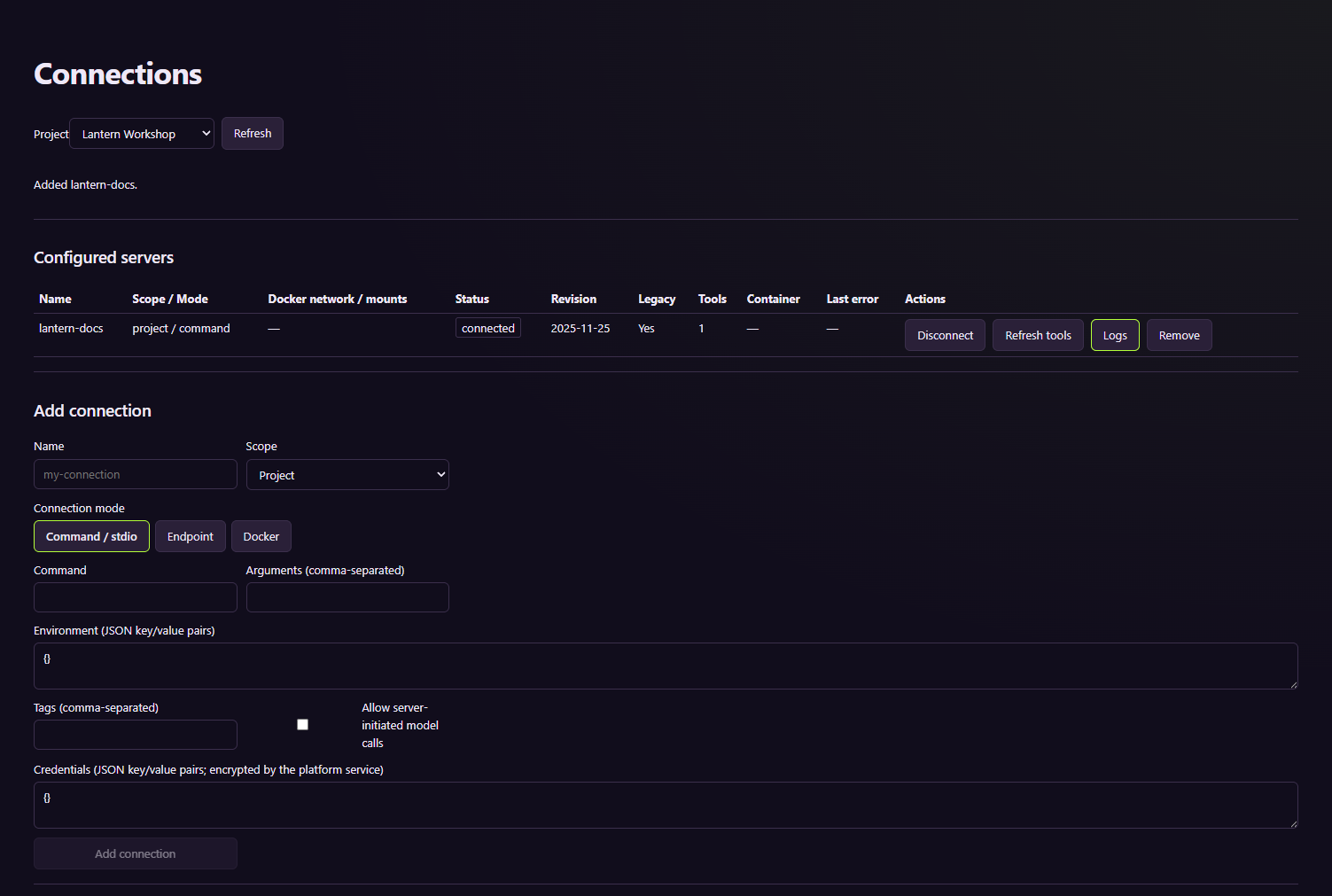
The repository-owned example server returns a fixed rule. It is not an engine editor bridge.
Verify editor identity separately
For live engine work, bind the project and inspect a read-only identity reply before mutation. A discovered tool description does not grant access; effect classifications, ceilings, approvals, and validation still apply.
Docker needs its own working runtime and appropriate mounts and networking. Some Docker and community-server scenarios remain unverified in the source documentation. For failures, reproduce the server launch in the same host environment and inspect logs rather than assuming a transport error is an engine defect.