
Getting started with PlayWeld
Install PlayWeld, open your workspace, and start with a small game project.
On this page
Your first PlayWeld project can be simple. Install the desktop workspace, make sure it can reach the local service, and try it with a new game folder before bringing in anything important.
Before you start
Download the PlayWeld release for your computer from the downloads page. Install your game engine separately; engines, AI providers, and art tools each have their own setup. If you want to contribute to PlayWeld itself, follow the source build guide.
Use a separate profile while you are getting familiar with PlayWeld, and practice with a project you can replace. The v0.21.0 release is an unsigned testing prerelease; review its release notes before installing.
You can begin by organizing a project and its notes. For AI-assisted Chat or tasks, connect and verify a model provider first. External providers may charge for usage; signing in to this website does not configure a desktop provider.
Confirm the service connection
Launch the desktop Control Room and open Project Home. Look for Connected to platform service. If the window opens without a connection, check that the application and service use the same profile; the troubleshooting guide explains the next checks.
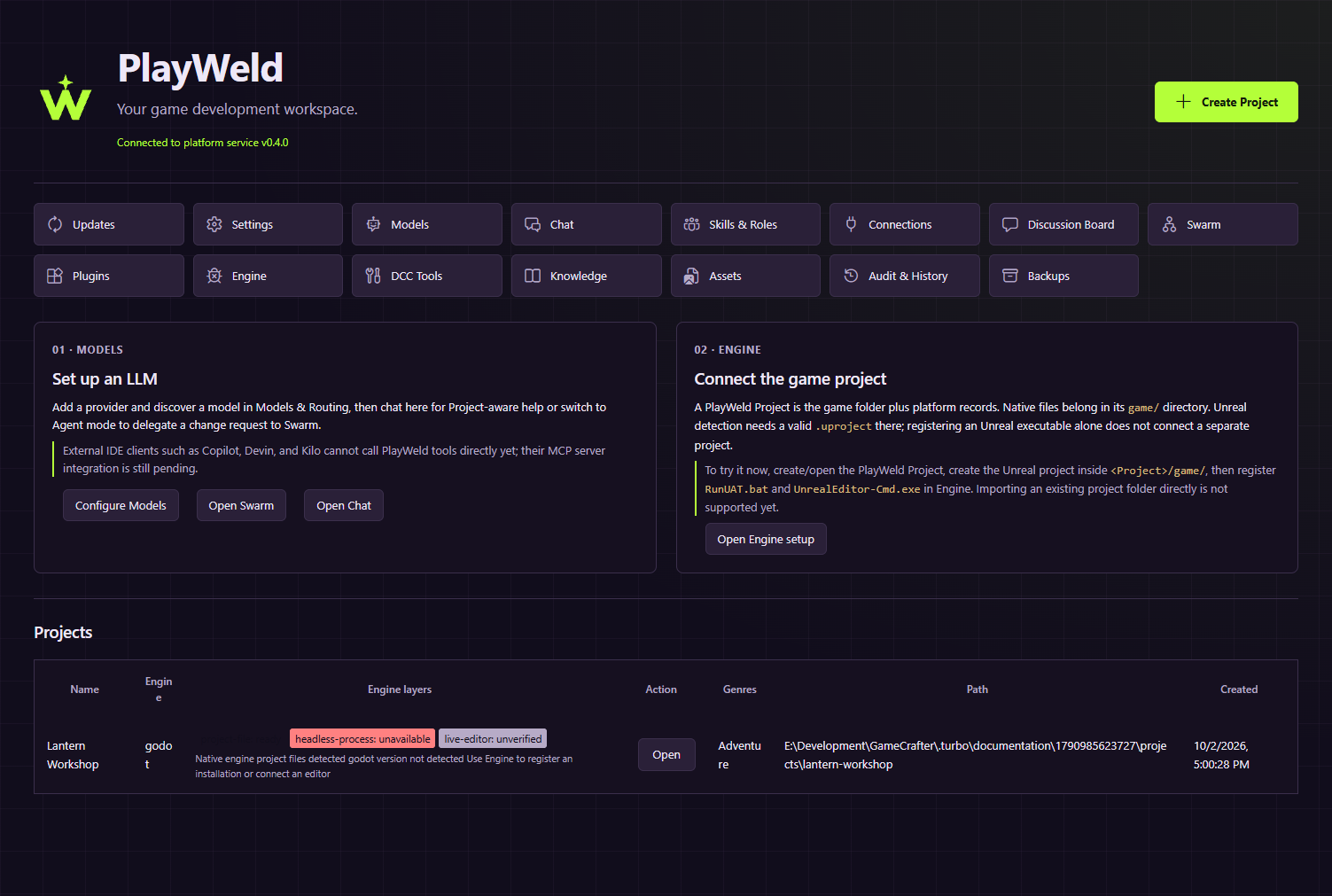
A browser-based Control Room demo with a sample project. Use the desktop download to work with your own game.
Create a small first project
- Choose Create Project.
- Enter the project name and description.
- Choose the game engine you plan to use and a genre.
- Choose a parent directory and review the final confirmation.
- Open the registered project and check the selected folder.
The engine family is fixed when the project is created. Native engine content belongs in game/; design records belong in docs/. An empty game directory is a workspace, not a finished native engine project.
Choose your next step
Follow Lantern Workshop for a complete learning path. Configure models and routing before using Chat, and inspect engine capability layers before running native operations.
More detail
v0.21.0 User Guide — reviewed for project creation, service, profile and provider setup. The screenshot and original references below retain their pinned historical provenance.