
Find out what happened during a task
Trace a problem back to the task and tool involved, and share only the details needed to get help.
On this page
If a task fails or produces an unexpected result, Audit & History can help you find out what happened. Start with the problem you saw, then follow it back to the task and tool involved.
Find the owning record
Select the intended project. Locate the relevant task, engine or DCC run, asset job, integration, or tool call. Note identifiers and timestamps so you can connect records across screens.
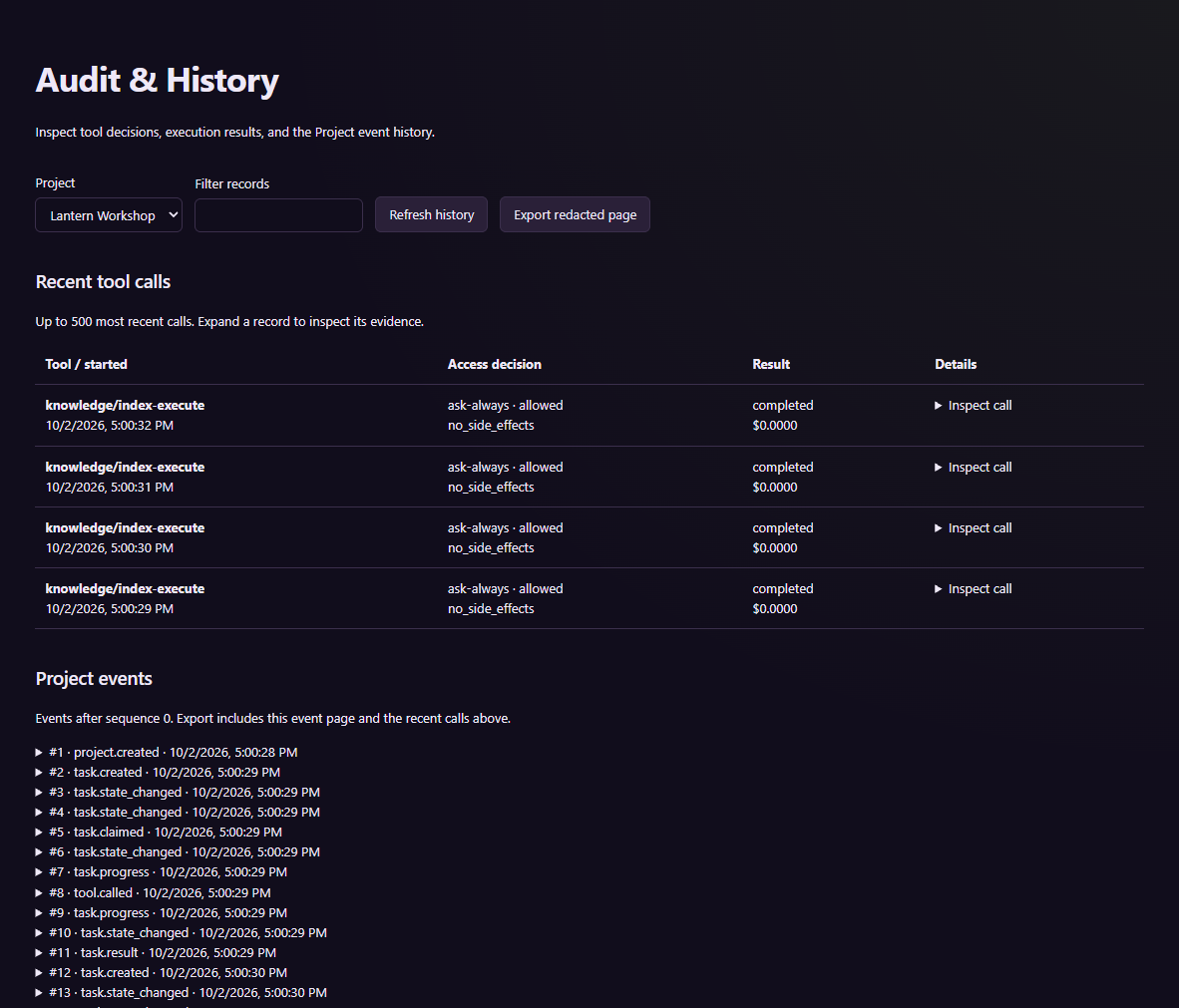
The screenshot shows an isolated tutorial profile with example records.
Inspect the operation name, effect classification, approval result, execution state, and error. A denied call, a failed runtime, and a task waiting for information need different responses. An export of one page contains only that selected page, not the entire project's history.
Check the service profile
From a built PlayWeld source checkout, the service CLI supports start, status, and stop through node packages/platform-service/lib/cli.js. Select the correct GAMECRAFTER_PROFILE_DIR before using it. Check the same profile in the application and diagnostic shell.
Do not remove lock or token files merely because the window is closed. The service may continue according to window.closeBehavior. Diagnose its actual ownership and state first.
Prepare a reproducible report
Include the application/source version, operating system, relevant engine or connector version, sanitized project identity, operation and record IDs, steps, expected result, and actual error. Preserve the first failing artifact before retrying.
Review logs and screenshots for provider keys, service tokens, recovery material, local paths, and private game content. Share only the evidence needed to explain the problem. Continue with setup troubleshooting or the backup runbook for a specific recovery path.